


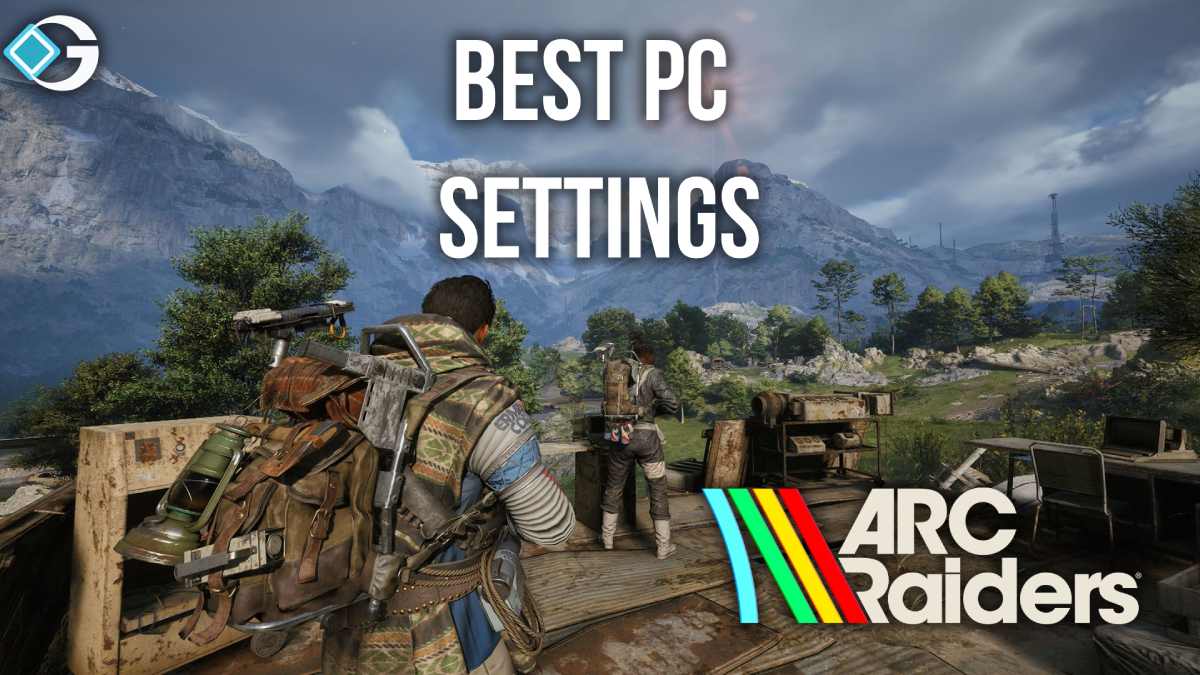
As you dive into the chaotic battlegrounds of ARC Raiders, whether you’re a newcomer stepping in as a Raider or a seasoned player tackling high-stakes extraction missions, fine-tuning your PC settings is crucial. It can be the key to either conquering the map or falling victim to intense firefights. This guide will explore the essential system specifications, the key settings adjustments that deliver significant improvements, and customized configurations for both competitive and visual fidelity playing styles.
Recommended PC Specs to Start With
Before tweaking individual graphics settings, it’s smart to make sure your system is capable of running ARC Raiders at your desired performance level. Here are key benchmarks:
- Minimum: Intel Core i5-6600K / AMD Ryzen 5 1600 + GTX 1050 Ti / RX 580 + 12 GB RAM.
- Recommended: Intel Core i5-9600K / Ryzen 5 3600 + RTX 2070 / RX 5700 XT + 16 GB RAM.
- Ultra/high-end: Intel Core i7-9700K / Ryzen 7 3700X + RTX 4070 Ti / RX 7900 XTX + 16 GB+ RAM.
If your PC is below the recommended tier above, you’ll want to lean more heavily on performance-oriented settings. If you meet or exceed the recommended specs, you have more headroom for visuals.
Display & Performance-First Tweaks
Here are settings you should adjust first to lock in smooth performance and responsiveness:
Display Mode & Refresh
- Use Fullscreen or Exclusive Fullscreen rather than borderless/windowed for the lowest input lag.
- Make sure your monitor’s refresh rate is selected (e.g., 144 Hz if you have it).
- V-Sync: Turn OFF for competitive responsiveness, as V-Sync adds input lag.
- If you have an NVIDIA GPU, enable NVIDIA Reflex / Low Latency Mode (or AMD’s equivalent) to improve responsiveness.
Upscaling & Resolution
- If you’re running 1440p or 4K and your FPS dips, use DLSS (for NVIDIA) or FSR/other upscaling (for AMD/others) in Balanced or Quality mode. This gives a good fps boost with minimal visual drop.
- Avoid using “Performance” or “Ultra Performance” upscaling if you want good image clarity (especially for spotting enemies at range).
Performance-Heavy Graphics Settings
These settings tend to hit performance hard, so adjust them if you’re missing your FPS target:
- Shadows: Lowering from Ultra → Low gives a strong FPS benefit.
- Post-Processing / Motion Blur / Depth of Field / Camera Shake: Turn OFF or set Low. Motion blur & camera shake reduce the clarity of movement and aim.
- Ray Tracing: If enabled, it will significantly impact performance with limited benefit in competitive play. Best to disable if FPS matters.
- Foliage Quality / Effects / Reflections: These can add visual flair but often hurt performance and visibility (dense foliage may hide enemy movement). Consider setting foliage to Low if you want clarity.
Balanced Settings Suggestions
Here’s how you can dial things depending on whether you want a smooth, competitive feel or cinematic visuals.
| Playstyle | Key Settings Focus | Sample Configuration |
|---|---|---|
| Competitive / High FPS | Fullscreen mode, V-Sync OFF, DLSS Balanced/Quality, Shadows Low, Effects Low, Foliage Low | Resolution 1080p or 1440p, aim for 120-144 Hz FPS |
| High Fidelity / Visual Quality | Fullscreen, upscaling in Quality mode, Shadows High/Ultra, Foliage Medium/High, Ray Tracing On (if hardware allows) | Resolution 4K or 1440p DLAA, aim for 60-90 FPS or higher |
Fine-Tuning & Optimization Tips
- Update your graphics drivers and ensure Windows is up to date — many performance issues trace back to outdated drivers.
- Close unnecessary background apps (especially CPU/RAM-heavy tools) — the game is somewhat CPU-intensive in some scenarios.
- Monitor your GPU vs CPU usage: If the GPU is at 100% but still lagging, lower GPU-bound settings (shadows, effects). If CPU is at 100% while GPU is underutilized, you may need to lower CPU-intensive settings (draw distance, view distance) or upgrade CPU.
- Consider installing the game on an SSD/NVMe for faster load times and smoother streaming of assets. While not formally listed, players report better results with SSD.
Achieving optimal PC settings in ARC Raiders involves striking the perfect balance between performance and visuals, tailored to your hardware and playing style. For those who value responsiveness and a competitive advantage, prioritize lean performance above all else. If you own a top-tier setup and are passionate about the captivating universe of ARC, enhance your visuals to match the experience. Whichever option you select, start with the setup outlined above as your foundation and build upon it from there.