

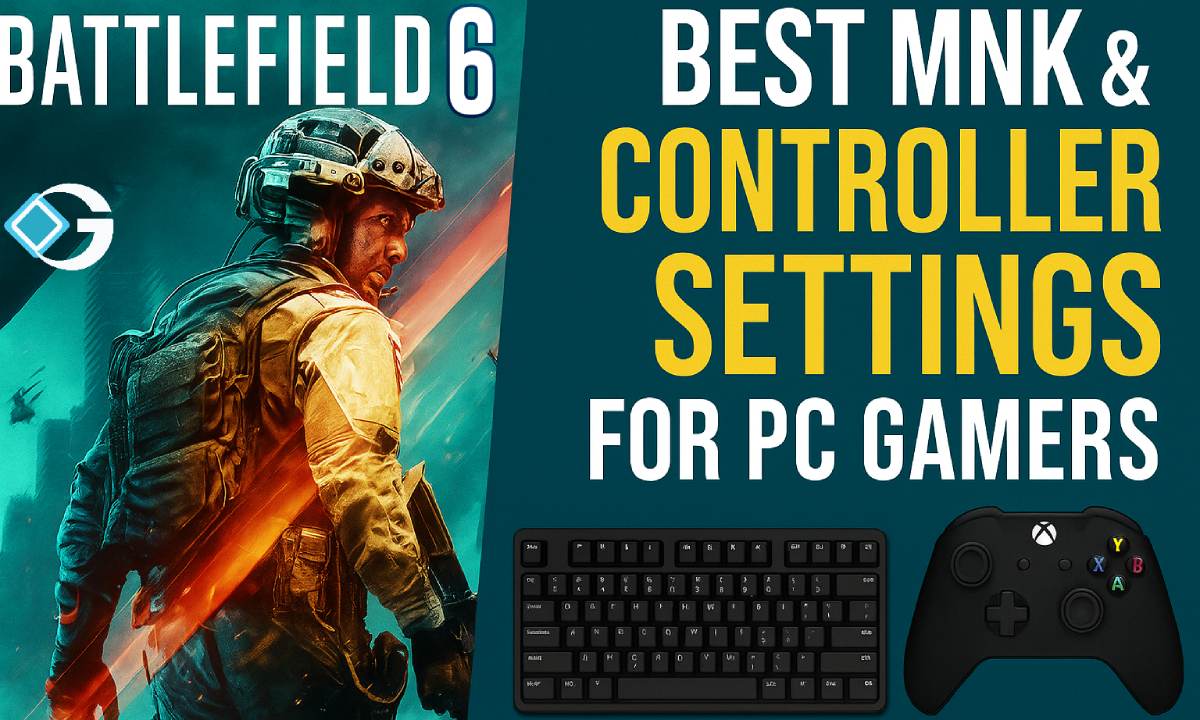
As Battlefield 6 is here to change the way large-scale multiplayer battles work, it’s more important than ever to get your input setup right. The appropriate settings can make the difference between winning and losing, whether you use a mouse and keyboard (MnK) or a gamepad with analog precision. We’ll show you the best PC settings for both control schemes in this article. These include sensitivity, aim help, dead zones, and more, so you can start killing right away.
Why input settings matter in Battlefield 6
Battlefield has always been a franchise where infantry, vehicles, and aircraft warfare all require accuracy, quick reactions, and tight control. If your sensitivity or deadzone is set wrong, your aim may feel slow or twitchy. Also, if your settings are different at different zoom levels, your muscle memory may get messed up.
Also, the Battlefield 6 controller settings panel is more complicated than a lot of players think. For example, settings are concealed under separate control categories, tuning choices are hard to find, and certain default values are conservative.
With that in mind, let’s break down the best settings by input type.
Best PC MnK (Mouse + Keyboard) Settings
Below is a starting baseline for mouse + keyboard settings in Battlefield 6. Always adjust slightly to match your personal DPI, playstyle, and hardware.
Mouse & Aim Settings
| Setting | Suggested Value / Tip | Why / Notes |
|---|---|---|
| DPI | ~800 (or your usual baseline) | Common competitive sweet spot; adjust sens accordingly |
| Infantry Mouse Aim Sensitivity | ~ 23 (base) | Good balance for reflexive aiming (from Deltia’s guide) |
| Vehicle Mouse Aim Sensitivity | ~ 33 | Allows better control when handling vehicles |
| Uniform Infantry Coefficient / Multiplier | 133 | Keeps zoomed sensitivity proportional — fewer drastic jumps |
| Raw Input / Disable Mouse Acceleration | On / Off (disable acceleration) | To ensure direct 1:1 mouse movement |
| Field of View (FOV) | 100 (or higher, if performance allows) | Wider view helps spot flanks; default is lower |
| Steady Scope / Sniper Mode | Bind to right mouse button or toggle | Bind to the right mouse button or toggle |
Keybinds & Movement Options
- Infantry Sprint: Click (toggle) is usually preferred so you don’t have to hold sprint.
- Double Tap Forward Sprint: Off — gives you more control versus accidental sprints.
- Vault Over Sprint: On — smoother transitions across obstacles.
- Crouch / Prone Behavior: Personal preference (Toggle vs Hold); many prefer toggle for crouch and hold for prone.
- Zoom Modes: Hold for zoom (rather than toggle) helps with faster switching between ADS and hipfire.
Visual / Quality Settings to Support Aim
While this is not strictly input, poor visual clarity or distracting effects can hinder aiming. Use settings like:
- Turn off motion blur, chromatic aberration, film grain, and vignette.
- Use a high refresh rate monitor if possible; cap frame rate near that value (to avoid huge dips).
- Use upscaling (DLSS, FSR, etc.) in performance mode if you can’t maintain stable full resolution.
Best Controller Settings (on PC or Console)
If you’re using a controller on PC (or plan to use one in console/PC crossplay), here are refined settings that many players settled on during the beta period. These aim to maximize responsiveness and aim assist without feeling sluggish.
Button Layout & Presets
- Use Alternate button layout (swaps melee with B / circle, crouch/prone to right stick) — this is a popular layout in BF6.
- For Vehicles / Aircraft, the Alternate layout is especially recommended: turning via the left stick rather than always forward/backwards movement is more intuitive.
- You may need to manually map “Slide” to a stick press (e.g., R3) as it might not be bound by default in BF6.
Infantry / Aim Settings
| Setting | Recommended Value / Range | Comments / Rationale |
|---|---|---|
| Infantry Aim Sensitivity | 30–40 (some guides recommend ~30) | Many players found this a good middle ground in beta |
| Field of View | 105–110 | Balances visibility vs distortion |
| Zoom Sensitivity Coefficient | ~ 177.8 | Scales ADS sensitivity relative to hipfire |
| Aim Assist Strength | 100 | Max value used by many guides — to help tracking with stick input |
| Aim Assist Slowdown | 100 | Slows crosshair when near targets for fine control |
| Aim Assist Zoom Snap | 50 | Helps “snap” to targets when zoomed |
| Input Curve / Stick Acceleration | Standard (or experiment with “Linear” if you prefer) | |
| Yaw / Pitch Acceleration | ~ 55–60 | Adds a mild boost to stick responsiveness |
Controller Tuning: Deadzones, Thresholds, Vibration
- Vibration: Off — vibration can be distracting or interfere with micro adjustments.
- Left Stick Center Deadzone: ~ 5 (or slightly above, depending on stick drift)
- Left Stick Axial Deadzone: ~ 10
- Right Stick Center Deadzone: ~ 5
- Right Stick Axial Deadzone: ~ 10
- Max Input Thresholds:
- Left Stick: ~ 80
- Right Stick: ~ 100
- LT / RT Deadzones: ~0 (or minimal) - The Gyro / Flick features (if present) generally can be left on defaults, unless you’re actively using motion aiming.
Zoom / ADS Settings
- Vertical Aim Ratio / Zoom Ratio: Some players set this to ~ 75% (i.e., slow vertical movement when zoomed)
- Zoom Transition Smoothing: On — helps smooth out sudden jumps between zoom and hipfire
- Individual Zoom Multipliers: Adjust 1.25×, 2×, etc., so you don’t lose consistency across scopes
Tips for Tweaking & Testing
- Start with neutral settings — don’t go to extremes initially. Use the midpoints and see how it feels.
- Use a training range or low-stakes match to test aim control against targets at different distances.
- Only adjust one setting at a time (e.g., sensitivity, then deadzone) — this helps you see which change actually helps.
- Check consistency across zoom levels — you don’t want to feel wild when switching scopes.
- Account for stick drift: if your controller’s analog sticks drift, you may need to increase deadzones slightly.
- Stay updated: as the game patches, these values may shift in balance, or default settings may change.
For MnK, focus on raw input, clean visuals (turn off camera effects), a moderate DPI + sensitivity baseline, and proportional scaling across zooms.
For Controllers, use the Alternate layout, turn off vibration, fine-tune deadzones, and leverage full aim assist settings (especially in a mixed-input environment). These settings are based on beta feedback and early guides. You should expect some adjustments after launch as patch fixes and meta evolve.